














A beginner-friendly walkthrough with real screenshots from the official Medius Dashboard
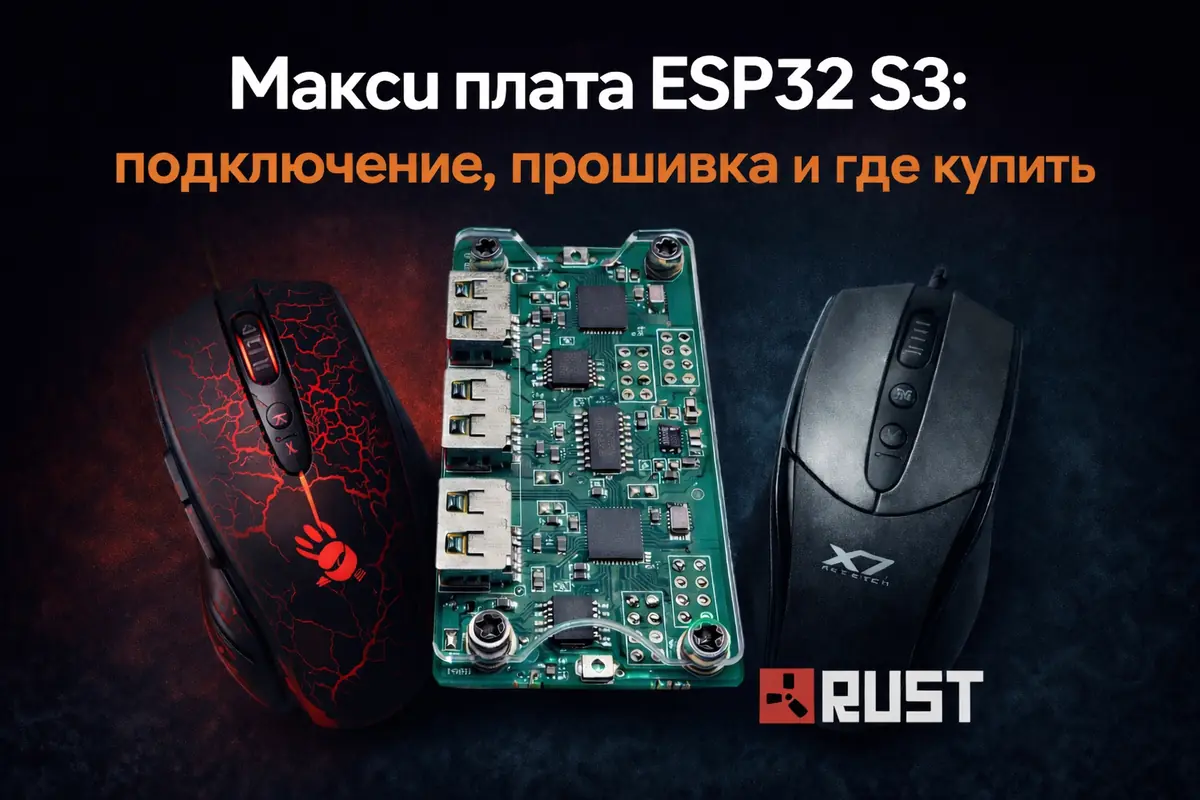
Makcu ESP32 S3 is a small hardware board based on the ESP32-S3 that acts as an intermediate device between the mouse and the computer.
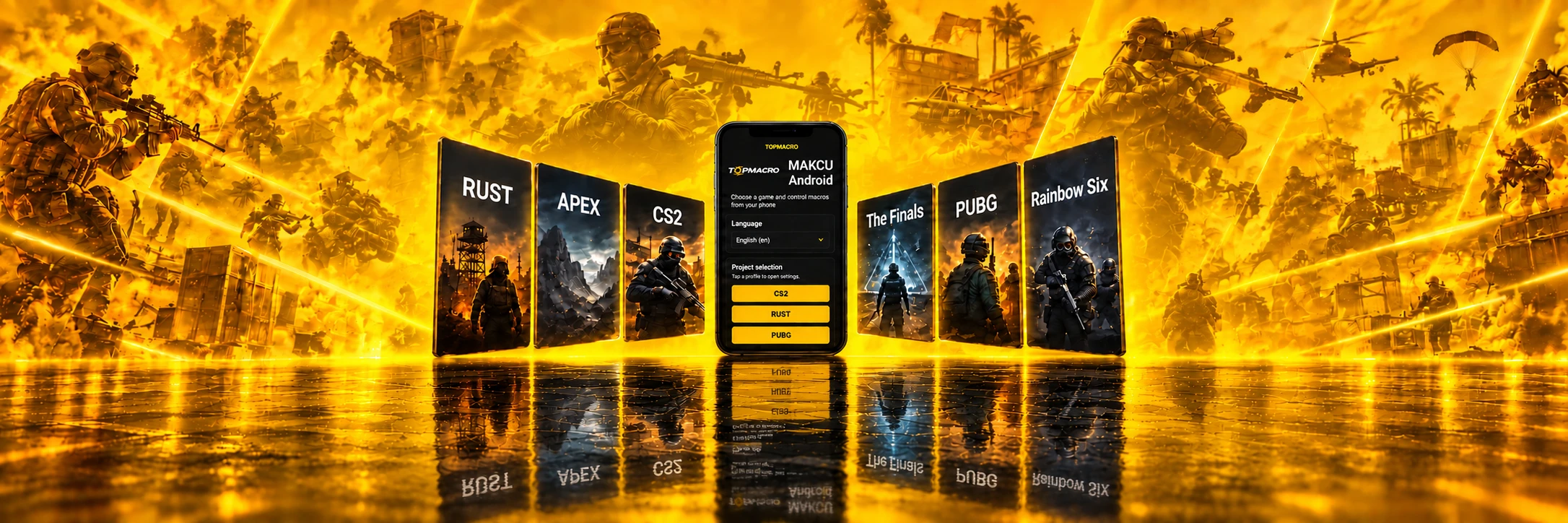
The most practical setup today uses the Makcu board with an Android phone running our macro app. This lets you continue playing comfortably with recoil compensation. The Makcu board can also be used in a two-PC setup. If you do not have an Android phone or a second computer, a single-PC connection option is available. All supported connection setups are described in detail later in this article.
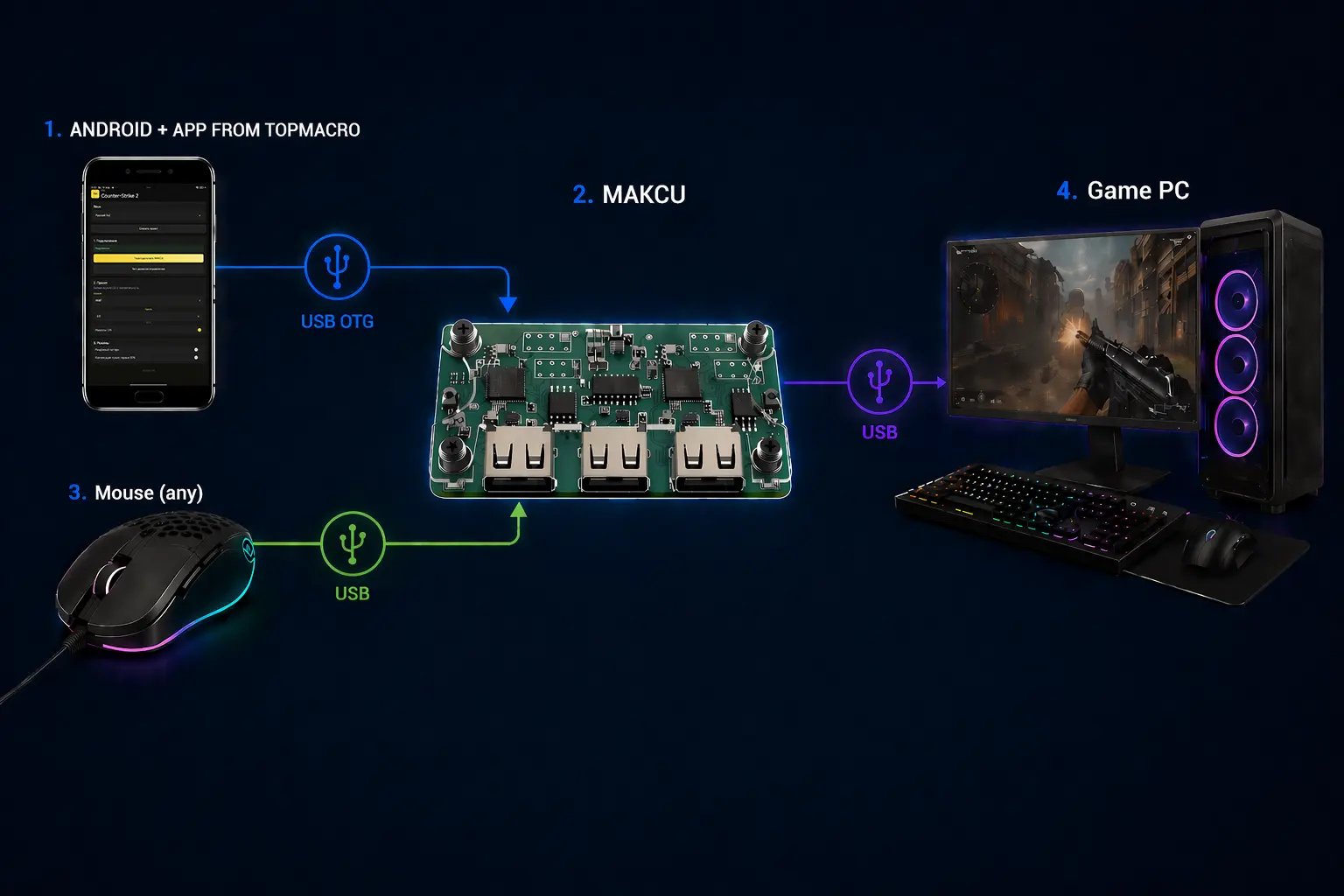
Below, we explain what to check before buying, how to flash the board, and how to connect and configure it correctly.
In online marketplace listings, Makcu is sold as ESP32-S3 Arduino Development Board or MAKCU Development Board. You can find it on AliExpress, Taobao, Temu, in local electronics stores, on eBay, and in specialized DMA/KMBOX shops. Prices vary widely: some sellers list it at around 20–30 USD, while others charge more because of bundled cables, shipping, or local stock.
| Where to look | What to pay attention to |
|---|---|
| AliExpress / Taobao / Temu | The most common source. Check how many USB cables are included, photos of the specific board revision, reviews with real pictures, and the buyer protection period. |
| Online stores in your country | Convenient if fast delivery and a clear product page matter to you. |
| eBay and local sellers | Suitable if you need local stock. Check the listing status: some offers may already be inactive, and the price can be higher than on marketplaces. |
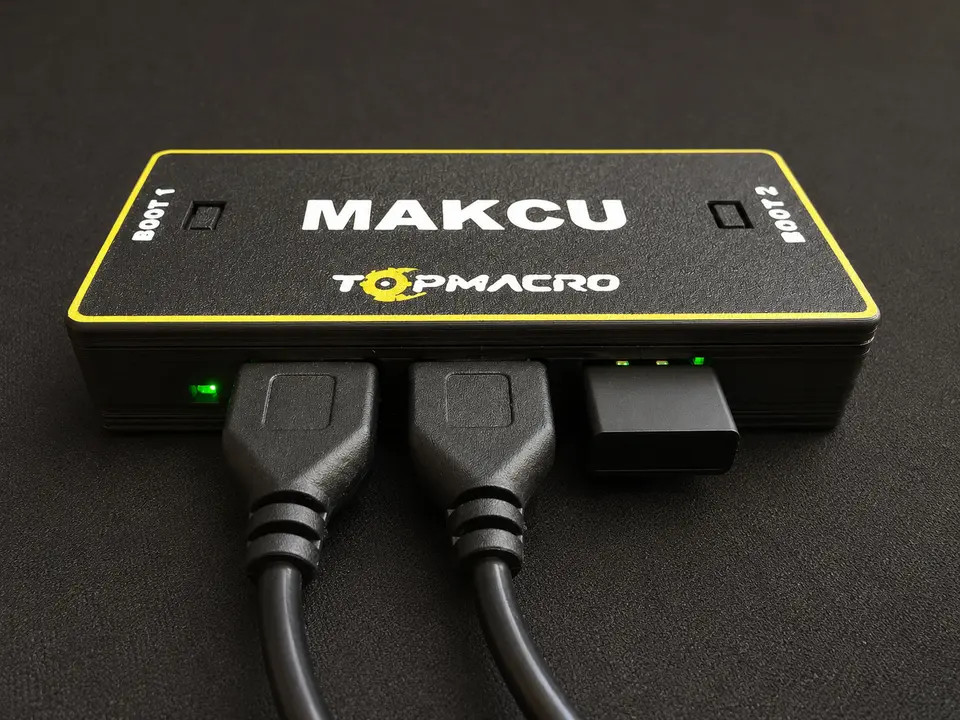
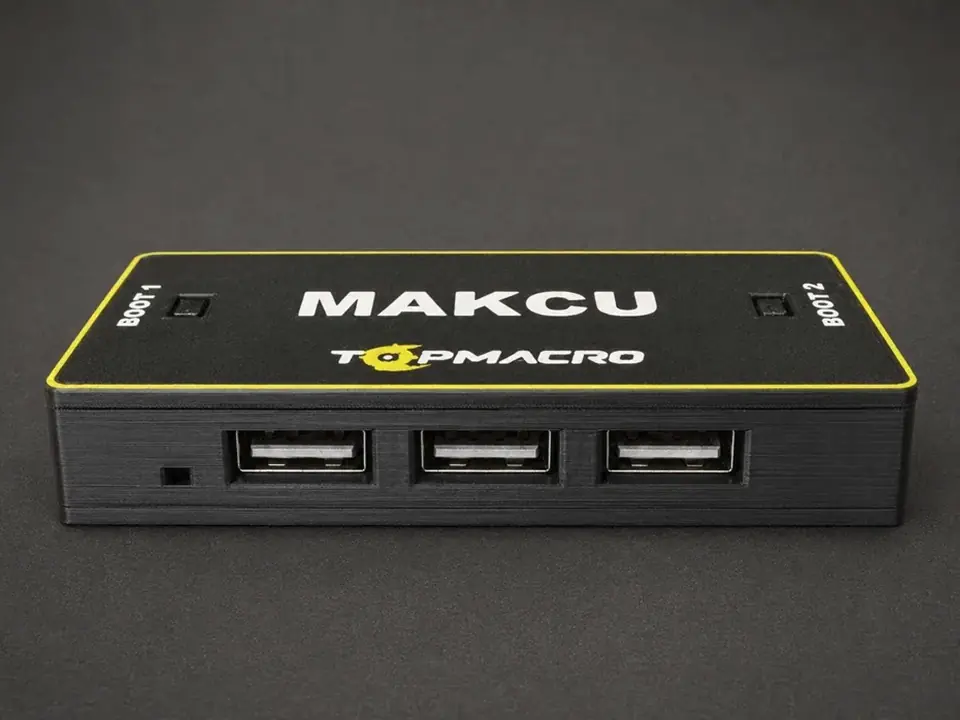
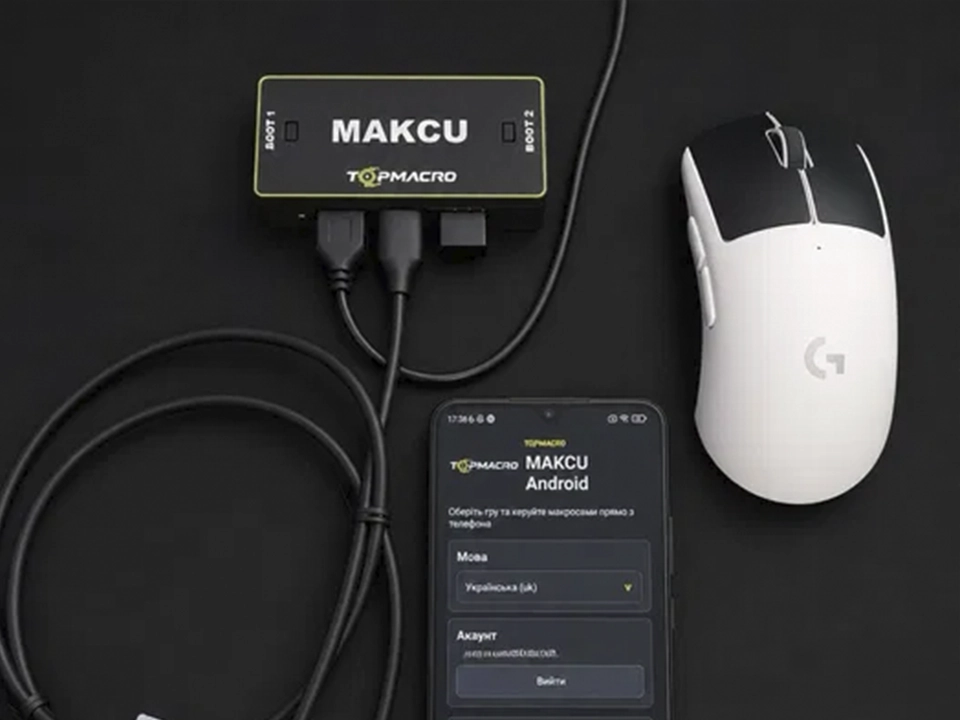
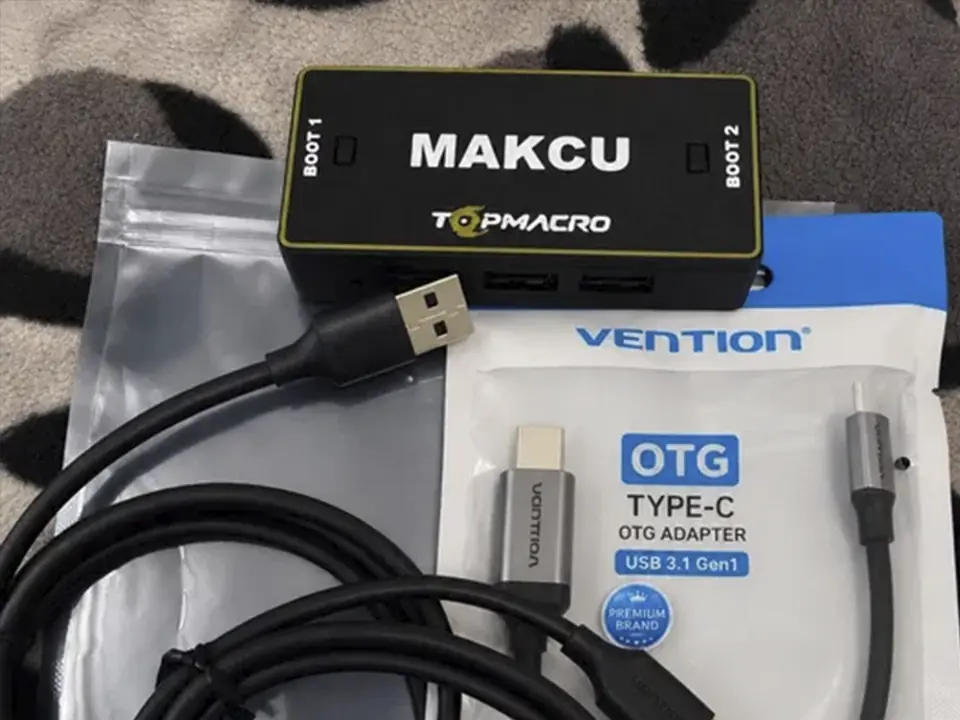
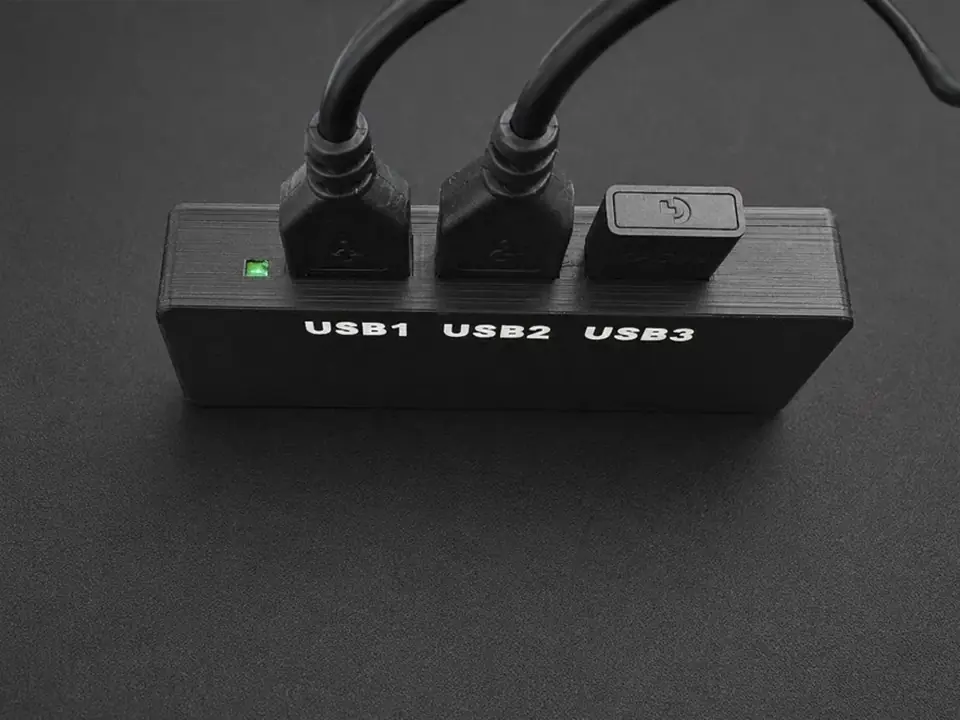
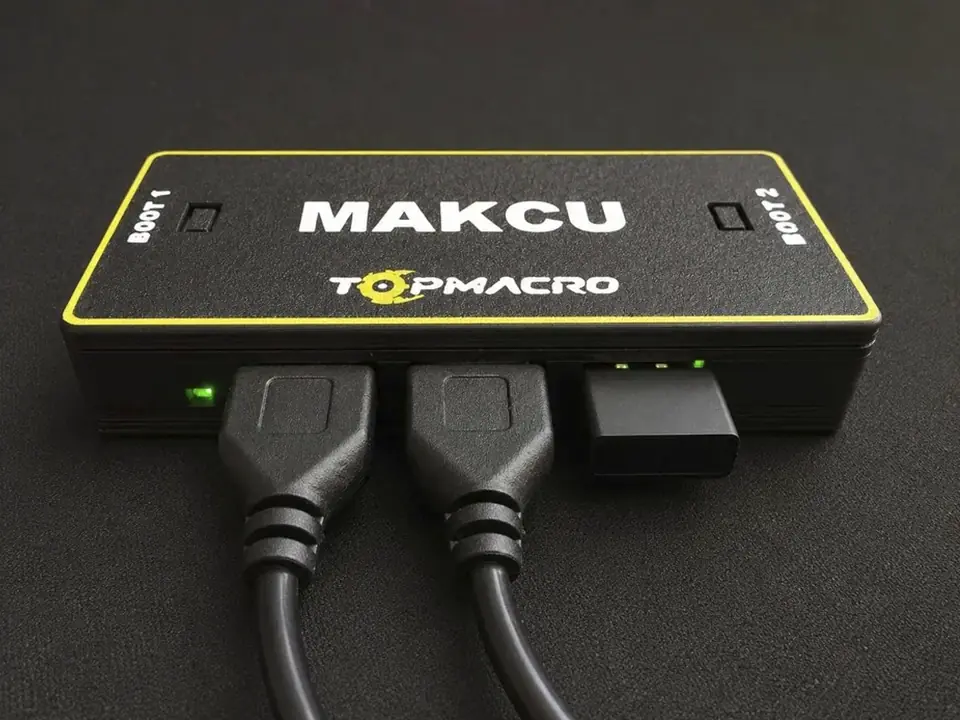
If you do not yet have a Makcu board, you can choose the ready-to-use TopMacro-branded kit: the board is pre-flashed, installed in a protective enclosure, and fully prepared for connection. The package includes two USB cables and a complimentary 30-day subscription to our macro software. The higher price of the branded kit reflects the protective enclosure, preconfiguration, and delivery-related costs. If keeping the price lower is your priority, you can purchase a board without an enclosure from another marketplace: once flashed and connected, it will provide the same functionality and is usually considerably cheaper.
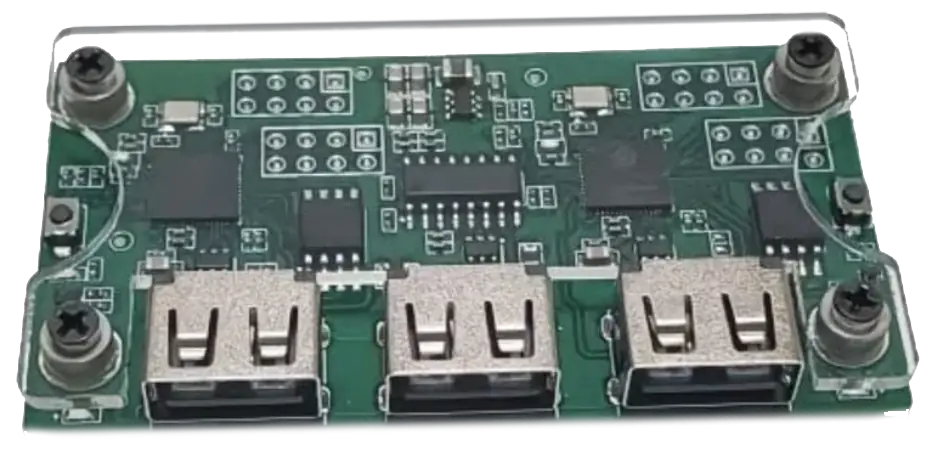
Before buying, check the following: if the kit includes only one USB-to-USB cable, you will need to buy a second identical one separately. The board must have three USB ports and two BOOT buttons on the sides:
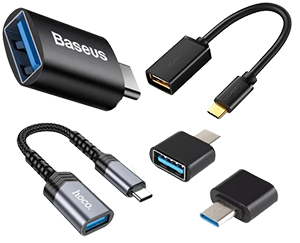
If you plan to use Makcu with an Android phone, buy a Type-C OTG-to-USB-A adapter in advance: the Type-C plug goes into the phone, and the USB-A port is used to connect the Makcu board. The product title or description must explicitly mention OTG support. Models such as the Philips OTG Type-C to USB 3.0 Adapter or similar alternatives will work, but always check the description before you buy. The photo below shows an example of the correct type of adapter. IMPORTANT! A regular Type-C-to-USB cable will not work. To connect Makcu to your phone, you must buy and use this type of adapter; without it, your phone will not be able to detect connected devices. If you are not sure whether you picked the right one, message us on Telegram.
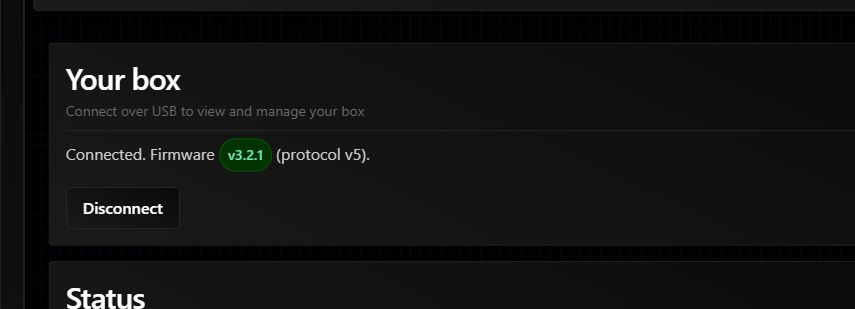
If Device already says Connected and shows a firmware version, Medius is installed. Do not repeat first-time setup; use the Update tab for normal updates.
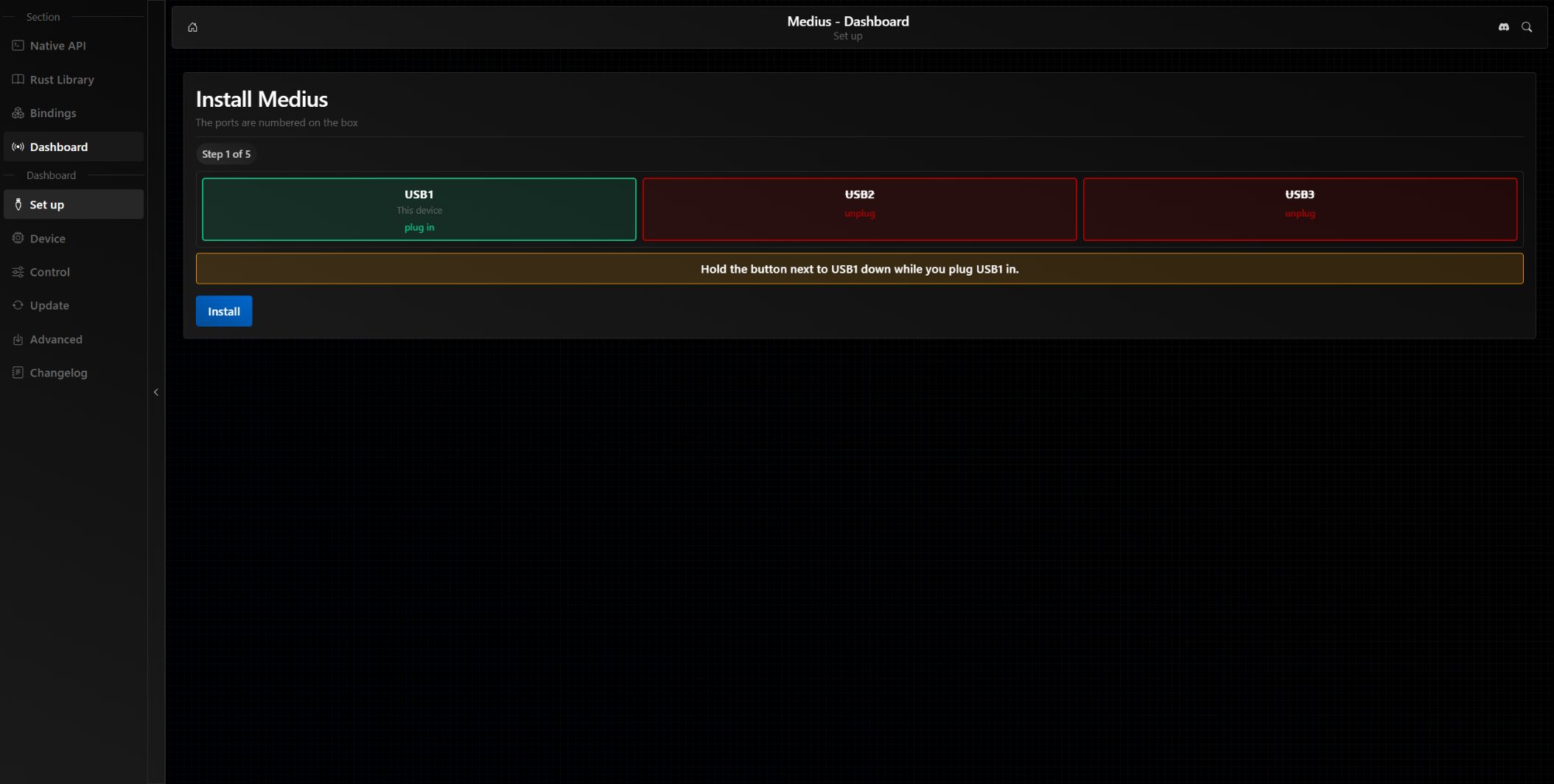
The current firmware is installed directly through the official Medius website. You do not need a separate Makcu program, EXE, or BIN files: the site downloads the latest stable release and guides you through each step.
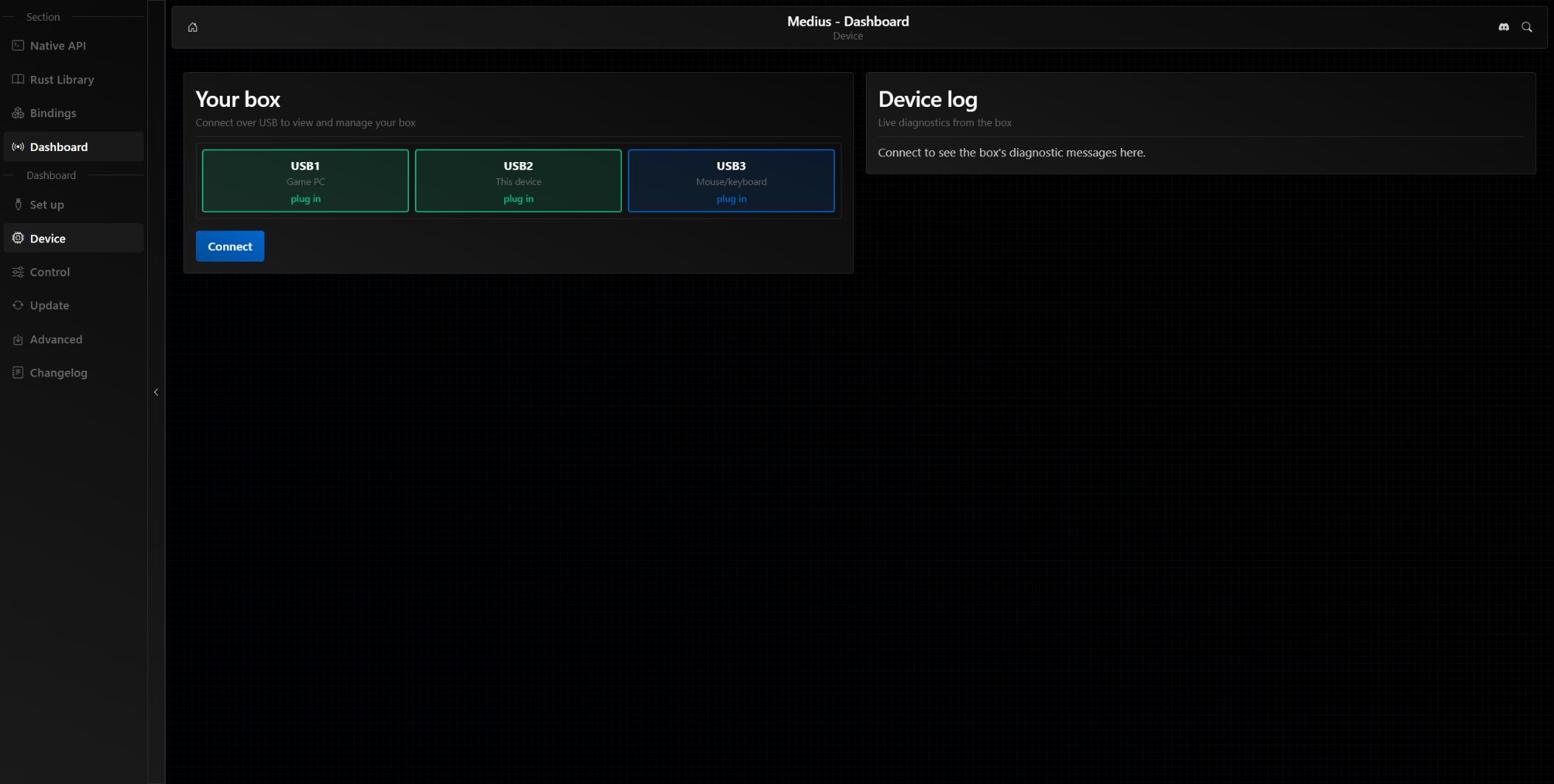
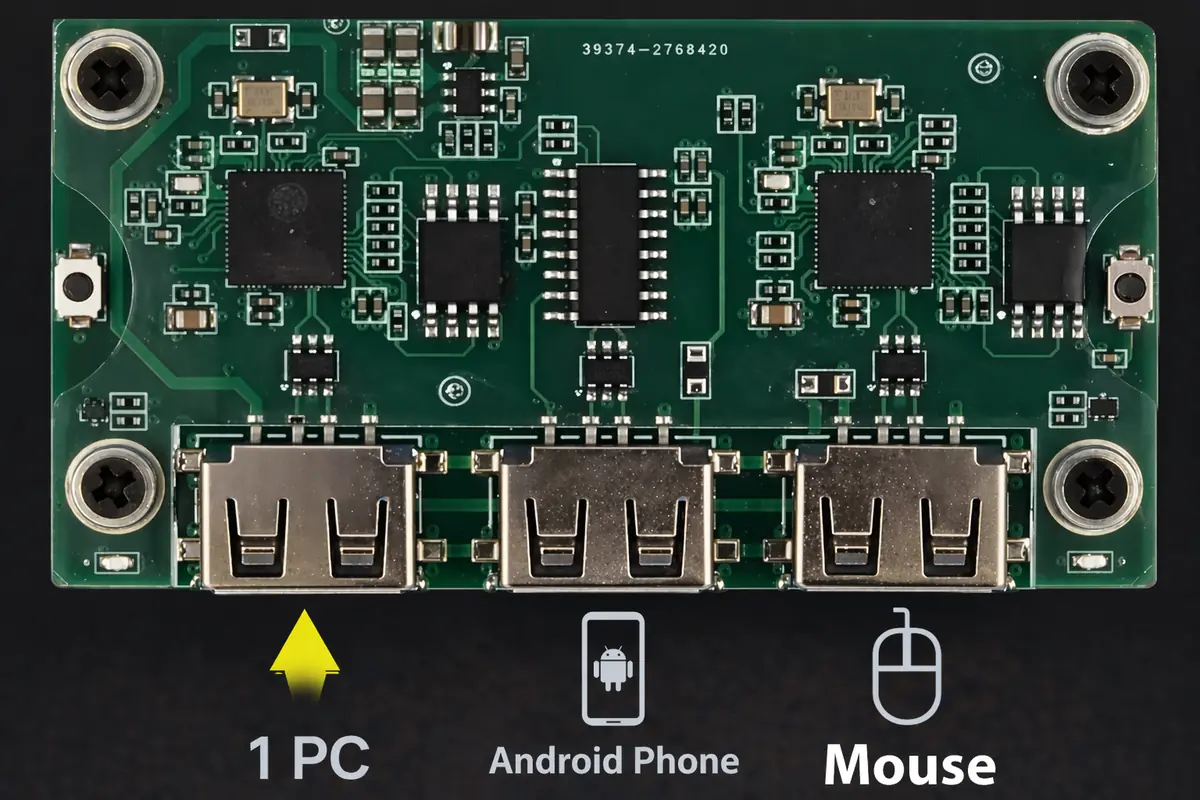
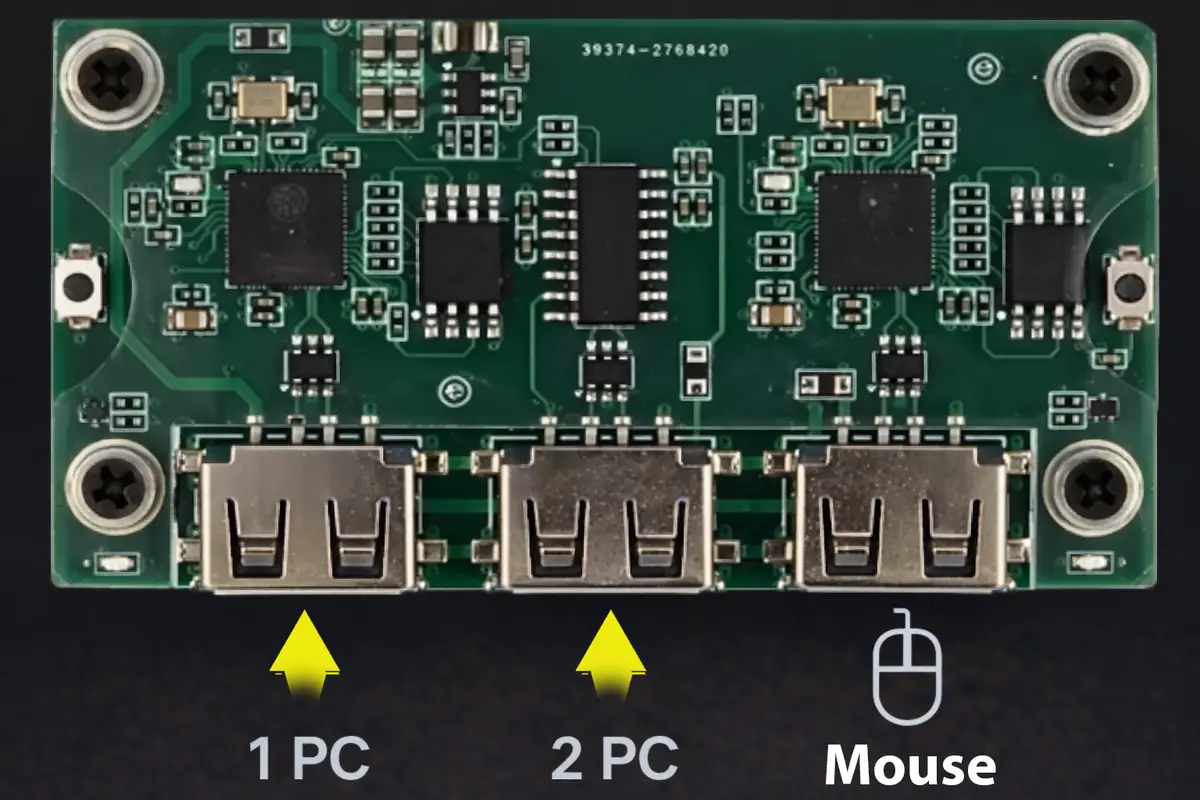
Do not connect USB1 and USB3 to the same computer. In normal use, USB1 goes to the gaming PC, USB2 to a second PC or an Android device running the control software, and USB3 only to the mouse. Connecting USB3 to a computer incorrectly can cause reverse power flow and an emergency shutdown.
Use these steps for a new board, the stock Makcu firmware, or an older version that does not connect as Medius.
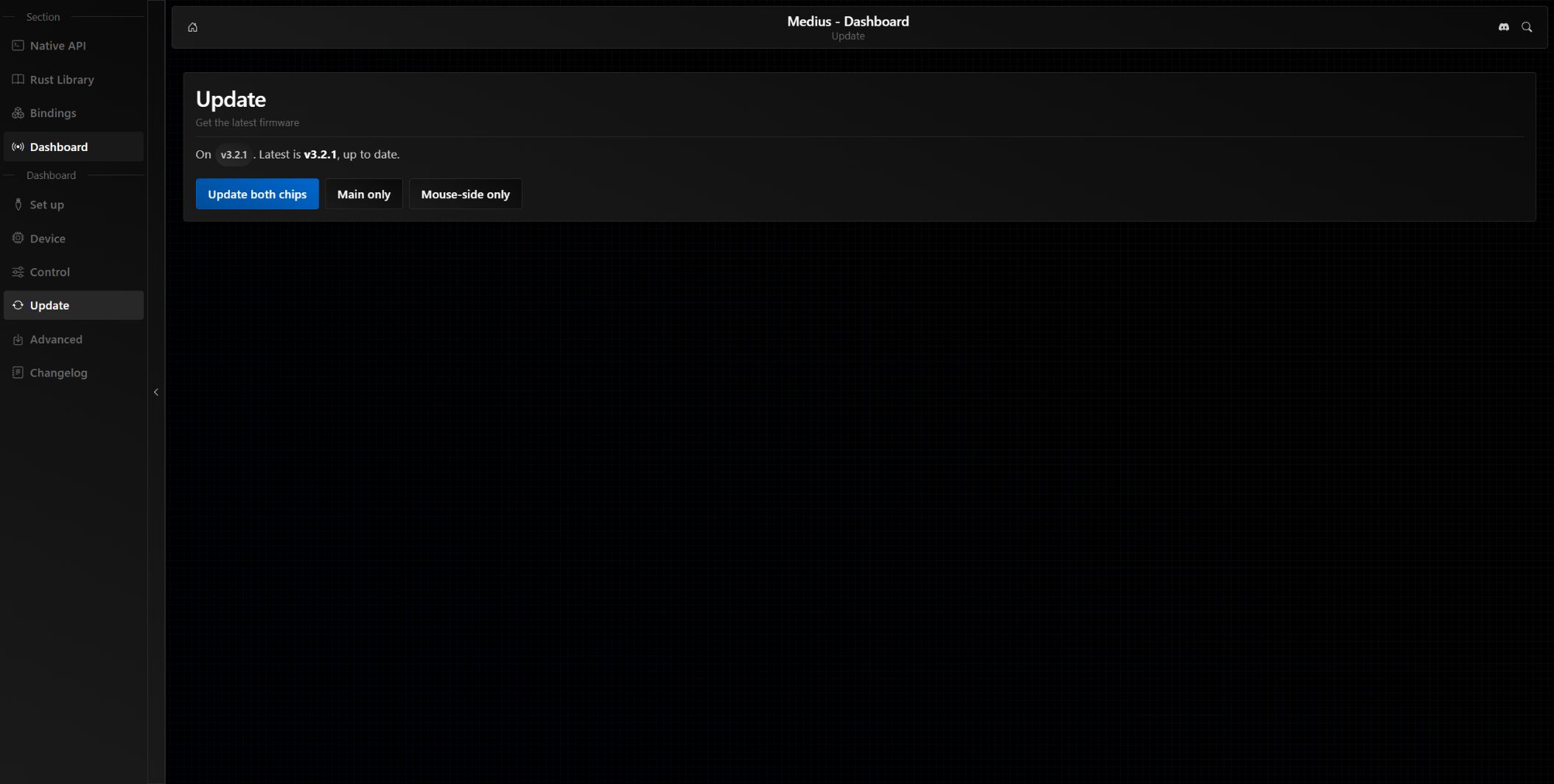
Switching to 1000 Hz is recommended if the cursor feels floaty or moves imprecisely. Before setting the Makcu firmware to 1000 Hz, set the mouse itself to the same polling rate in its manufacturer’s software, if the mouse supports this setting.
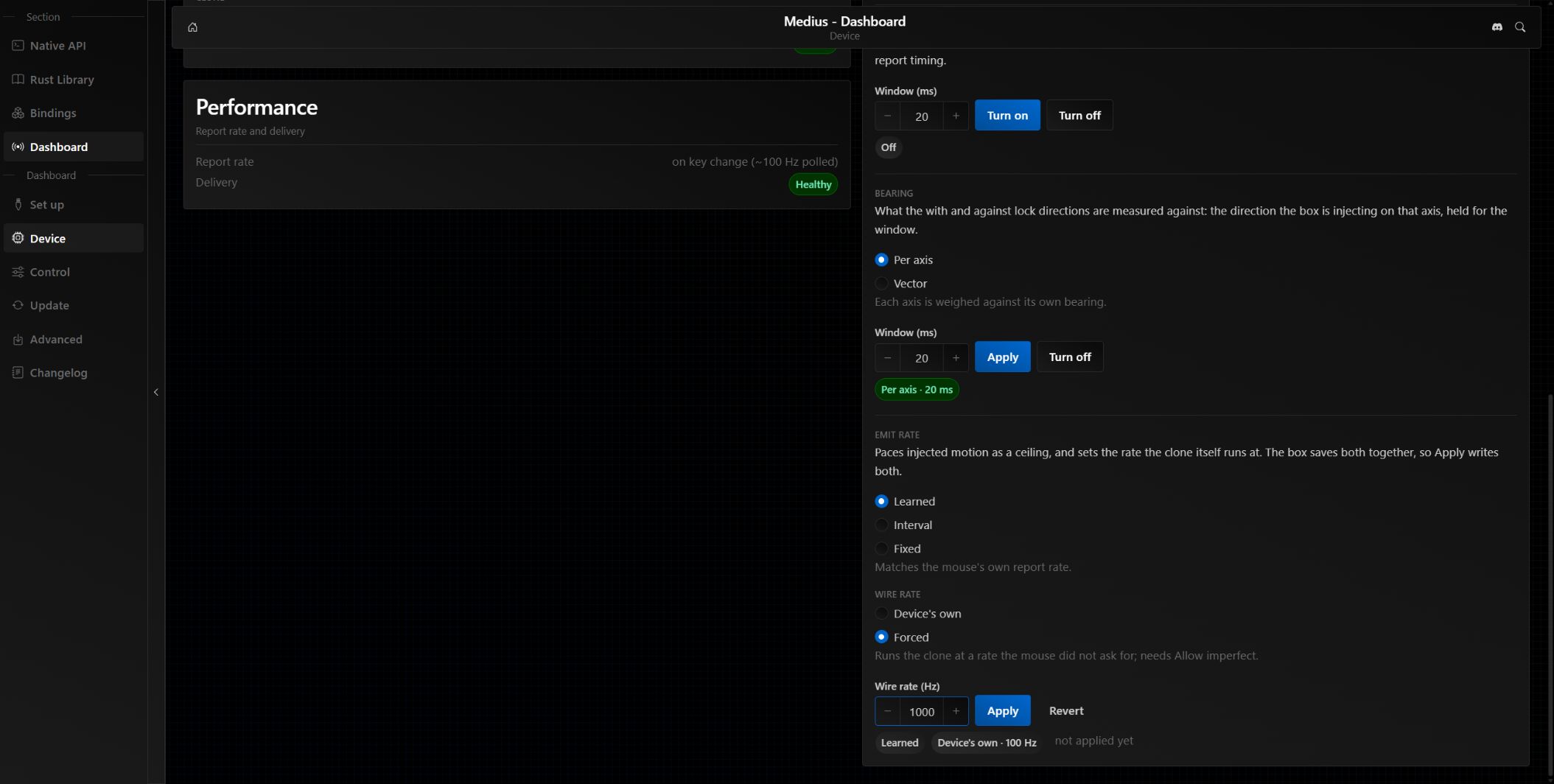
A low-speed USB device is limited to roughly 100 Hz, so Medius cannot obtain a true 1000 Hz rate from it. Changing Wire rate re-clones the device, so the COM port may disappear for a few seconds.
| Problem | What to do |
|---|---|
| No Connect button or the site cannot access Serial | Open the address over HTTPS in the latest version of Google Chrome. |
| CH343 is missing from the list | Connect USB2 to this computer and use a USB data cable. |
| The port is busy or disconnects immediately | Close TopMacro, the old flasher, terminals, and other Dashboard tabs. |
| Box is not answering | Check the normal USB1 and USB2 wiring. If Medius is not installed, return to Set up. |
| The mouse does not work after flashing | Check the order: USB1 to the game PC, USB2 to the control device, USB3 to the mouse. In normal operating mode, never connect USB3 to a computer. |
| Cursor movement becomes worse at 1000 Hz | Restore Device's own and check the mouse's polling rate in the manufacturer's software. |
Before testing the board in TopMacro, click Disconnect in Medius Dashboard or close the Dashboard tab completely so that the website releases the board and its COM port. Then connect the board using the normal wiring and start the check in the application. While Medius Dashboard remains connected to the board, TopMacro cannot detect it.
This option is suitable if the game runs on the main PC and the Android macro app runs on the phone.
Use this setup if the game runs on one PC and the macro program runs on a second PC or laptop.
Auto-detection on the second PC: to detect weapons and attachments, the game feed must be visible on the second PC. Open the detailed OBS, capture card, Parsec, and Discord guide.
This option is needed if both the game and the macro program run on the same main PC. In 1 PC mode, macros and aim assist will work in Rust and CS-Faceit, but there are risks because the program is running on the main PC.
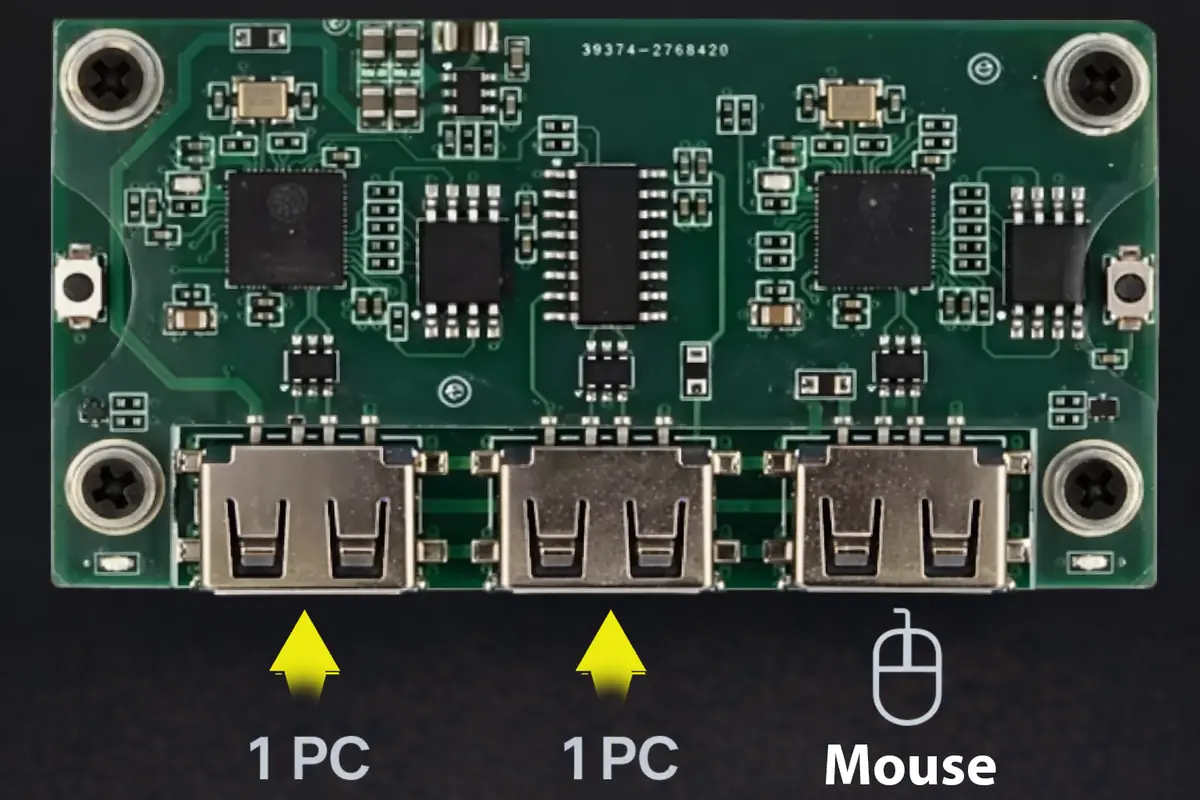
If the mouse does not move after flashing or the software does not detect the board, first check the port order. Correct port routing is just as important as the firmware: verify where the left, middle, and right USB ports are connected.
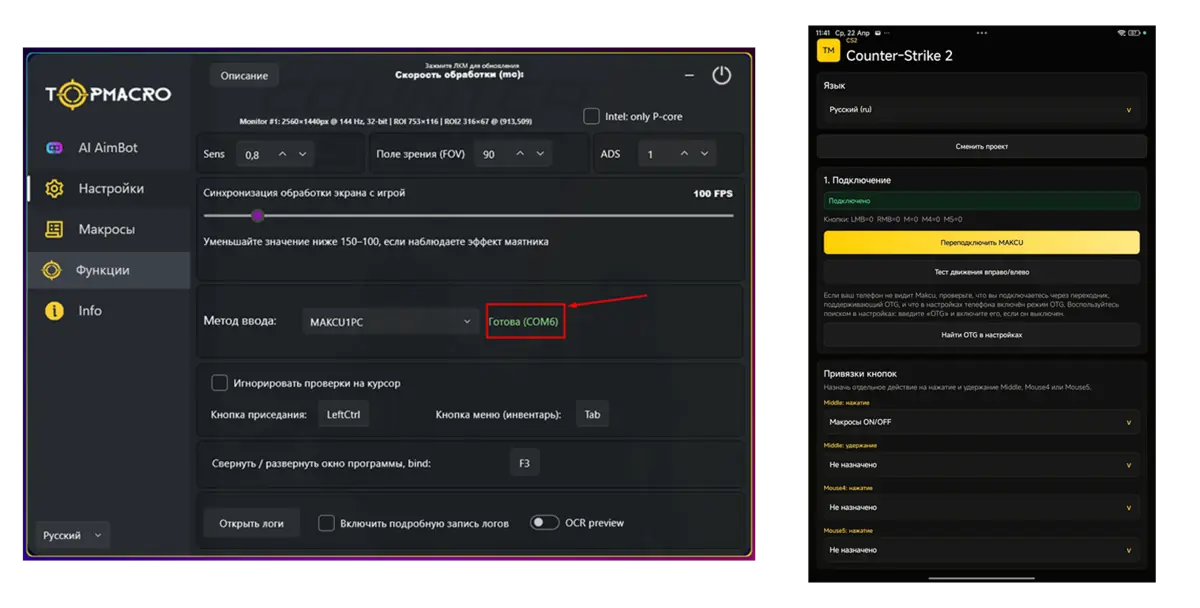
After successful flashing and connection using the 1 PC, 2 PCs, or PC + phone setup, create an account or sign in to your personal account, activate your subscription, then download and run the macro program on the device connected to the Makcu board's USB2 port. When you choose the input mode in the program settings, a message should appear confirming that Makcu is ready.
Short Makcu + Android clip labeling USB 1 to the gaming PC, USB 2 to the phone, and USB 3 to the mouse, followed by RUST on a monitor.
