
















MAKCU not detected or mouse not working: USB, COM port, firmware and cable diagnostics
Check each part of the connection in order and find the cause without random reconnections
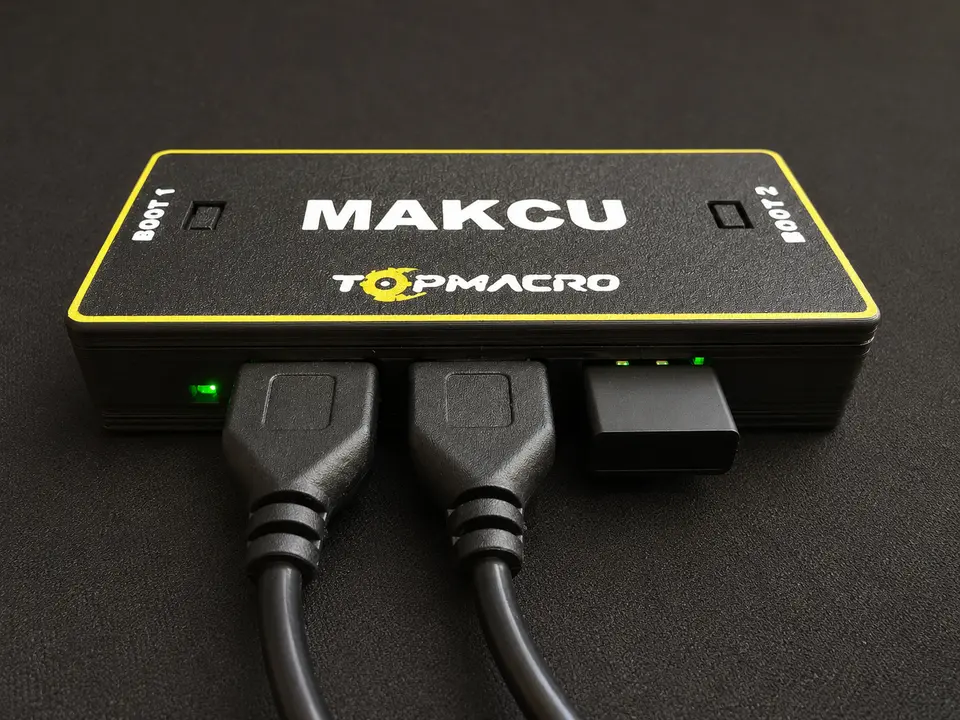
If MAKCU does not appear in the software, Windows does not create a COM port, or the connected mouse does not move, do not start by reflashing the board. The same symptom can be caused by a charge-only cable, USB1 and USB2 being swapped, a busy COM port, an incorrect board mode, or the mouse itself.
The sequence below helps distinguish a board fault from problems with a cable, USB port, firmware or connection layout.
The main troubleshooting rule: change only one component at a time. Repeat the same test after replacing a cable, port or mouse. Otherwise, you cannot tell what fixed or caused the problem.
10-minute quick check
Start with a simple reference setup. Do not use a USB hub, extension cable, front-panel port or adapter until the basic connection works correctly.
Check powerUSB1 and USB2 must both be connected during normal operation.
Find the COM portThe middle USB2 connection must create a COM port on the device running the software.
Check the mouseThe mouse connects to USB3 on the right and should first be tested directly on the PC.
Check the firmwareOnly consider flashing after ruling out the cables, USB ports and a busy COM port.
Checklist
Completed: 0 of 7
How to tell USB1, USB2 and USB3 apart
MAKCU has three ports with different functions. Do not press the Boot buttons during normal operation.
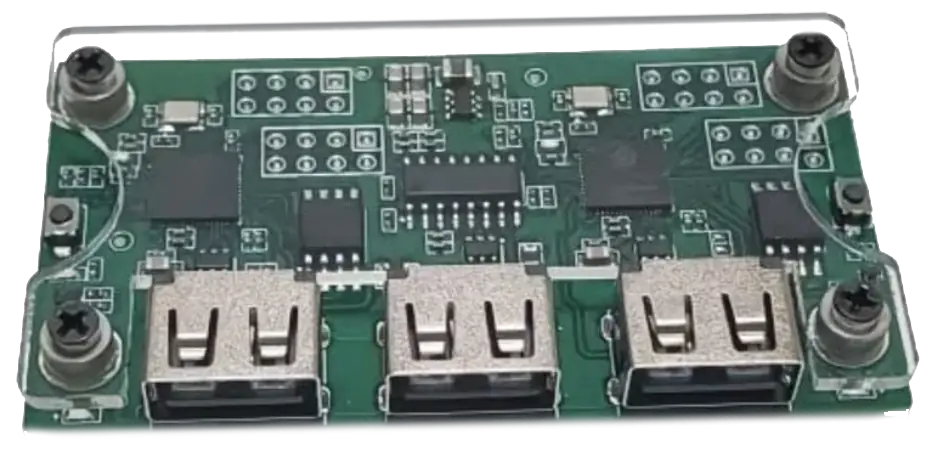
- USB1, left portConnects to the gaming PC. The board sends standard mouse input through this port.
- USB2, middle portProvides the control channel between MAKCU and the software. In Windows, this connection creates the COM port.
- USB3, right portConnect the mouse or its USB receiver here.
Important power detail: USB1 and USB2 must both be connected in the standard operating setup. Power is supplied through USB1; the middle USB2 handles COM-port communication and does not power the board by itself.
When using an Android phone, leave USB1 connected to the gaming PC, connect USB2 to the phone through an OTG adapter, and connect the mouse to USB3. In a two-PC setup, connect the middle USB2 port to the second PC. Detailed diagrams for every setup are available in the main MAKCU guide.
Use the symptom to choose the first check
Windows does not respond
Start with: another known-good data cable, another rear USB port on the computer, and then another PC.
COM port exists, but the software cannot connect
Start with: close the flashing tool, the MAKCU website tab, terminal programs and any other application that may have opened this COM port.
The board is detected, but the mouse does not move
Start with: test the mouse directly, connect it to the right-hand USB3 port, and confirm that USB1 goes to the gaming PC.
Repeated USB connection sounds
Start with: identify which connection disappears, remove the hub, and replace the relevant cable.
What the indicator lights mean
Indicators can behave differently across board revisions and firmware versions, so interpret them together with the response from Windows and the software:
- No indicators light up: check power, USB1, USB2, the cables and connectors first.
- An indicator is on, but there is no input: power is present, but this does not prove that the data lines work. Check the COM port, connection layout and mouse compatibility.
- Slow blinking does not stop: disconnect all power for 10 seconds, rebuild the connection, and check that the board has not remained in the wrong mode.
Diagnosing the COM port in Windows
In Windows, the middle USB2 connection creates the COM port. Look for it on the computer or laptop running the macro software. On Android, the app handles this USB connection directly, so it does not appear in Windows Device Manager.
- Open Device ManagerRight-click the Start button and select Device Manager.
- Expand Ports (COM & LPT)Note the current list, then unplug only the middle USB2 cable and reconnect it.
- Find the entry that changesThe correct COM port should disappear and reappear with USB2. Do not identify it by name alone; the reconnect test is more reliable.
- Check the COM numberIf the software cannot connect and the port is COM10 or higher, assign an unused number from COM3 to COM9 under Properties → Port Settings → Advanced.
- Release the portCompletely close the flashing tool, the MAKCU web tool, terminal software and other serial-port applications. Only one application can hold a COM port at a time.
- Run the check againDisconnect MAKCU for 10 seconds, reconnect the normal operating setup, and only then open TopMacro.
If Ports (COM & LPT) is missing: replace the USB2 cable and the USB port on the computer first. If the device appears under Other devices with a yellow icon, do not download drivers from unknown websites. Take a screenshot of the entry and its properties for support.
The standard communication mode often uses 115200 baud. Do not change the board speed by pressing buttons at random: the settings on the board and in the software must match, and an accidental change can create a new symptom instead of solving the original problem.
MAKCU is detected, but the mouse does not work
If the software detects the board and the COM port is stable, but the cursor does not move, troubleshoot the mouse path separately from the firmware.
- Test the mouse directlyConnect it to the same gaming PC without MAKCU. Movement, primary buttons and the wheel should all work reliably.
- Reconnect the mouse to the right-hand USB3 portDo not connect the mouse to the middle COM port. For a wireless mouse, use its USB receiver. A direct Bluetooth connection to the board is not supported.
- Check the complete operating setupUSB1 must go to the gaming PC, USB2 to the device running the software, and USB3 to the mouse. Do not hold the Boot buttons during normal operation.
- Start the software after connecting the boardSelect MAKCU as the input mode and confirm that the software reports the board as ready.
- Test with another mouseA basic wired USB mouse is best for this test. If it works while the main mouse does not, the issue is related to that particular mouse, its receiver or its USB protocol.
Useful checkpoint: first make sure ordinary cursor movement and clicks work through the board. Only then test the macro, sensitivity and in-game settings.
When reflashing is actually necessary
Flashing is appropriate when the board is new and arrived without firmware installed, one side will not enter normal operation, a previous update failed, or support has confirmed that the cables, USB ports and COM connection are working correctly.
The TopMacro kit is already prepared. If you bought the board in the official TopMacro box, you do not need to flash it before first use. Check the operating layout, both cables and the COM port first. Only reflash after the need has been confirmed.
Safe flashing sequence
- Disconnect the board completelyDisconnect every cable before entering Flash mode. Flash each side separately with one cable.
- Flash the left sideHold the left Boot button, connect the cable to the left USB1 port, and release the button only after Flash mode is detected. Select USB1 Flash in the software.
- Disconnect the cable when flashing finishesWait for the successful write message. Do not move the cable to the other side during the operation.
- Flash the right sideHold the right Boot button, connect the cable to the right USB3 port, wait for detection, and select USB3 Flash.
- Close the flashing toolWhen flashing is complete, fully close the tool so that it releases the COM port, then reconnect the normal operating setup.
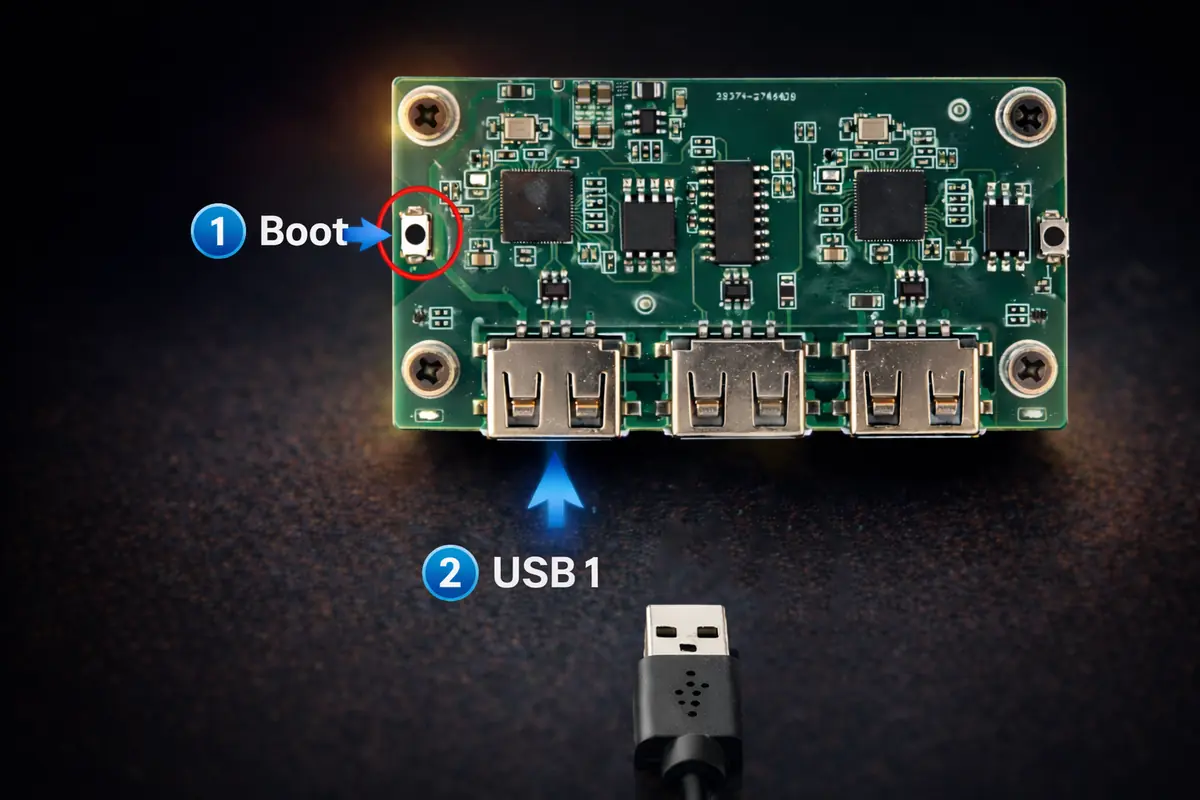
The complete guide, including images of the USB1 Flash and USB3 Flash buttons, is available here: How to flash MAKCU ESP32-S3.
On a new unflashed board, repeated connection and disconnection on one side may stop after Flash mode is entered correctly and the first write succeeds. If the cycle continues even while the correct Boot button is held, test another cable, USB port and computer in that order.
If the connection drops during operation
- Remove intermediate devicesConnect USB1 and USB2 directly to the computer. During testing, remove USB hubs, USB switches, extension cables and front-panel ports.
- Swap the cablesIf the problem moves from one port to the other, the cable is at fault. If it remains on the same connector, test that connector and the board on another computer.
- Check the physical connectionGently touch the cable near the connector without bending the board. If the device disappears after slight movement, the cable or connector is damaged.
- Rule out USB power savingIf the connection drops after a period of inactivity, temporarily disable USB selective suspend in the advanced Windows power settings and repeat the test.
- Test on another PCThe same fault with two known-good cables on two computers makes a board or connector defect more likely.
What to send to support for an accurate diagnosis
Saying that MAKCU does not work does not show where the connection fails. Prepare this short set of facts:
- A top-down photo of the board showing all three ports and cables.
- The selected setup: one PC, two PCs, or PC + Android.
- The Windows version and TopMacro software version.
- A screenshot of Ports (COM & LPT).
- The exact COM port number.
- Which indicators light up or blink after the board is connected.
- The step at which the error appears and its full text.
- The result of testing another cable, port, mouse or PC.
Do not send your account password or payment details. They are not required for troubleshooting.
Frequently asked questions
Why does Windows not show the MAKCU COM port?
Check the middle USB2 connection specifically, use known-good data cables, and connect without a hub. The relevant entry should disappear and reappear in Device Manager when USB2 is reconnected. If two cables and two USB ports produce no response, repeat the test on another PC.
Why does the software detect the board, but the mouse does not move?
Confirm that the mouse works and is connected to the right-hand USB3 port, USB1 goes to the gaming PC, and USB2 goes to the device running the software. Close other applications using the COM port and test a basic wired mouse.
Do I need to flash a board from the TopMacro kit?
No. It is already flashed and tested. Start with the normal connection. Reflash only when a problem has been confirmed or support recommends it.
If the cable powers the board, does that mean the cable is working correctly?
No. The power lines may work while the data lines are missing or damaged. In that case, an indicator lights up, but Windows does not create a device or COM port.
Why is the COM port visible while the software says it is busy?
The flashing tool, a MAKCU web tool tab, terminal software or another application has already opened it. Close all such applications, disconnect the board for 10 seconds, and start only TopMacro.