















How to connect a capture card to a computer — second PC setup
Step-by-step capture card setup for TopMacro MAKCU 2 PC: preserve any monitor's actual resolution, send the same image to the second PC, and select the card in the app.
The game runs on the main PC while TopMacro runs on the second PC or laptop. The capture card sends video over HDMI and USB, and MAKCU sends mouse commands back to the gaming PC.
The key is to send an exact copy of the gaming display at its original resolution and select the same frame size in TopMacro.
Do not connect the gaming monitor through the card's HDMI OUT. Keep the monitor connected directly to DisplayPort or HDMI on the GPU. Connect HDMI IN on the card to a separate output on the same GPU so the card adds no latency to the main monitor path.
How to connect a capture card to two computers
Working layout: main-PC GPU → card HDMI IN; card USB-C → USB 3.x on the second PC; gaming monitor → directly to the GPU. TopMacro does not require the card's HDMI OUT.
1. HDMI INGPU → HDMI IN
2. USB 3.xUSB-C → PC 2
3. DisplayPort / HDMIGPU → Monitor
Keep the monitor connected directly to DisplayPort or HDMI on the GPU. Connect HDMI IN on the card to a separate output on the same GPU so the card adds no latency to the main monitor path.
Connecting MAKCU for two computers
First assemble the board working diagram, then configure the video. Cables USB1 and USB2 should transmit data, not just power.
USB1 — main gaming PC
Connect the computer running the game here. The gaming monitor can use any resolution; keep its actual resolution and send that same resolution to the second PC.
USB2 — second PC or laptop
Here, the TopMacro program is launched in MAKCU 2 PC input mode.
USB3 — mouse
Connect a wired mouse or a USB receiver of a compatible wireless mouse.
Before checking recognition, make sure that the program sees the COM port and normal mouse movement through MAKCU works. Diagnostics of MAKCU and COM port.
Preserve the original resolution by cloning
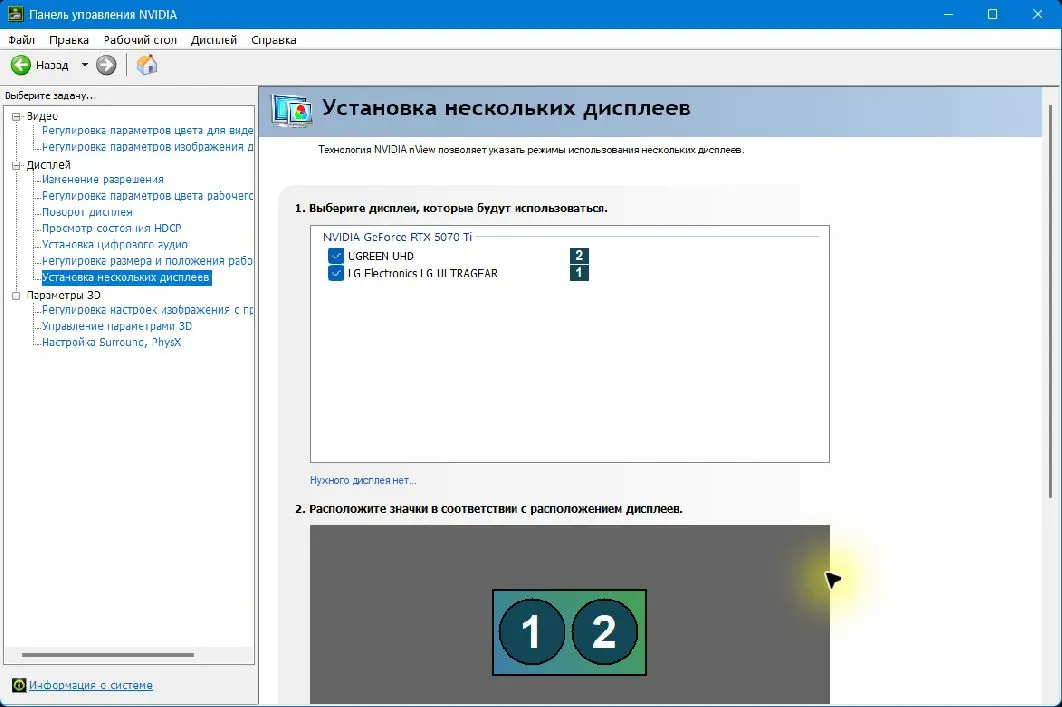
The screenshots below come from the actual PC with an NVIDIA GeForce RTX 5070 Ti, a 2560×1440 LG display, and a UGREEN CM700. Windows and NVIDIA treat the card as a second display receiving an exact copy of the gaming monitor. The 2560×1440 and 120 Hz values apply only to this example; on another PC, use that gaming monitor's actual resolution.
- Open NVIDIA Control Panel Go to Display → Set up multiple displays. If the entry is missing, update the NVIDIA driver and make sure both HDMI/DisplayPort cables are connected to the discrete GPU.
- Enable the monitor and the card Select both the gaming monitor and capture-card display. On this PC the card appears as UGREEN-UHD.
- Create the clone Drag the card icon onto the main monitor icon or choose Clone from the context menu. The layout must show overlapping display numbers 1 and 2.
- Select the original resolution Open Change resolution, select the main monitor, and set its real resolution. In this example it is 2560×1440.
- Select the common refresh rate Use the highest rate supported by the monitor, card, and cable together. This tested PC offers 120 Hz. If there is no signal, keep the gaming monitor's actual resolution and temporarily use 60 Hz for the first test.
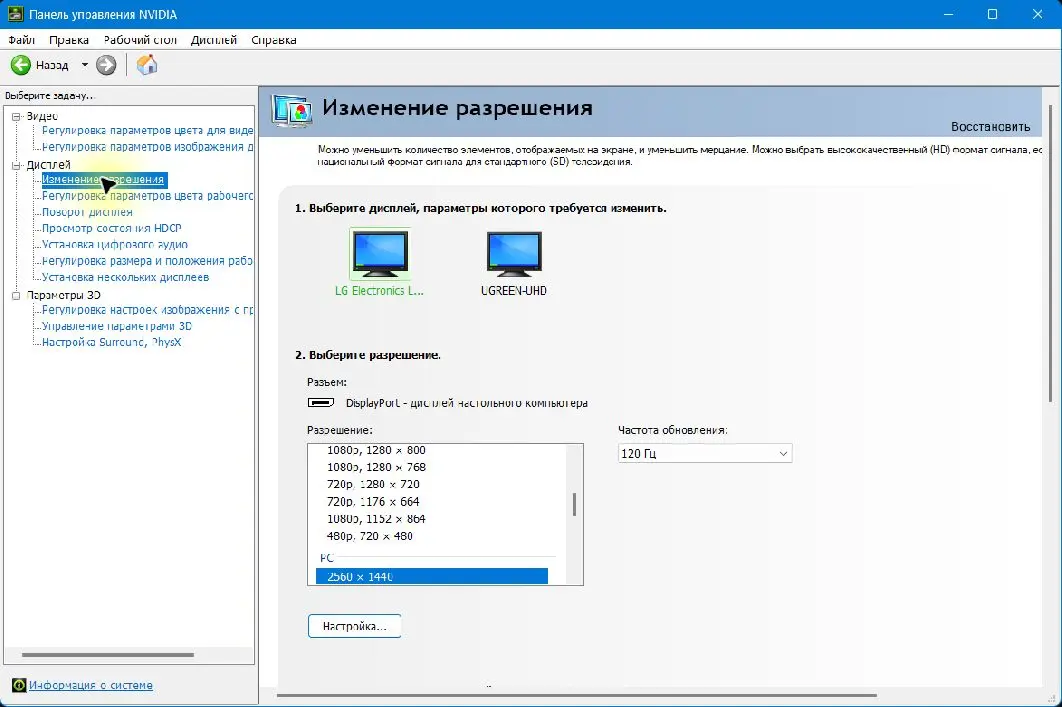
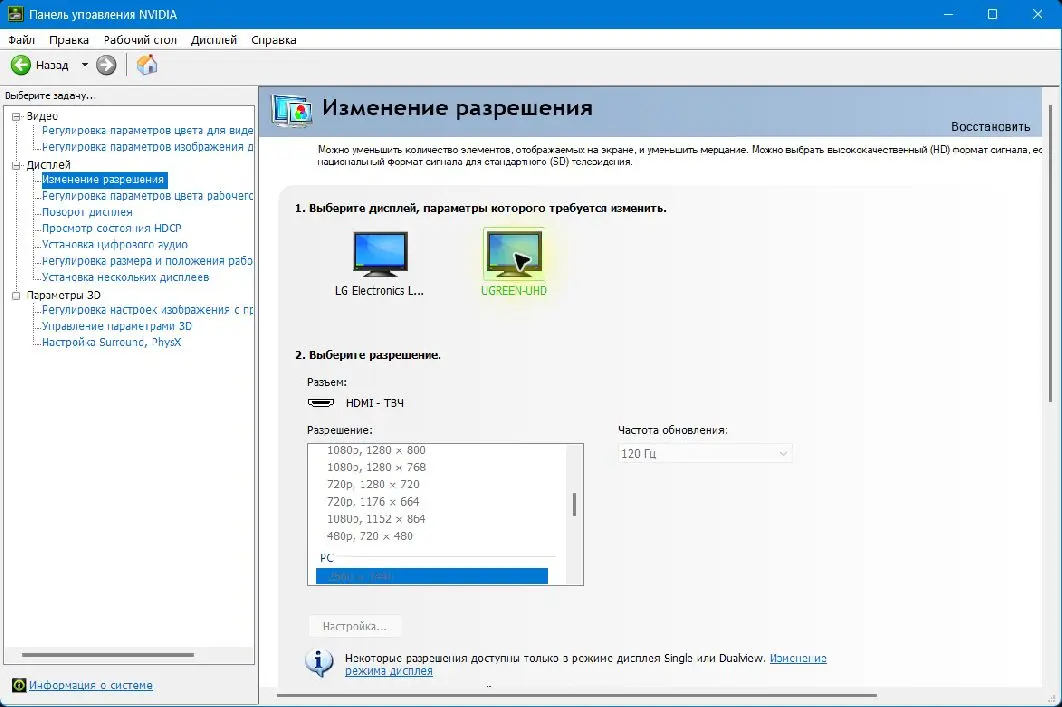
If the second PC has no picture: Do not lower the resolution immediately. Keep the gaming monitor's actual resolution, lower only the refresh rate to 60 Hz, then check HDMI IN, USB 3.x, and another cable. If there is still no signal at 60 Hz, the card, cable, or port may not support that resolution.
Start and configure TopMacro on the second PC
Connect the card and MAKCU first. Then open the TopMacro launcher on the second PC, choose the game, and open Settings.
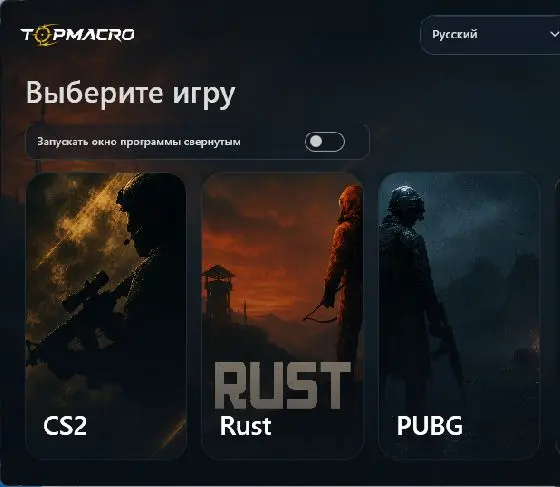
- Select the MAKCU 2 PC input mode Check that the program has connected to the COM port of the board on the second device.
- Select the capture card Under Capture source and resolution, refresh the list and select UGREEN or your card's name. Do not select the laptop's local display when the video arrives through the USB capture card.
- Select quality and project resolution Select the profile that matches the card's actual input signal, such as Full HD for 1920×1080 or 2K for 2560×1440. Leave Project resolution on Auto. If automatic detection is wrong, manually select the exact input-signal resolution.
- Enable auto-detection Activate weapon detection and wait for the templates for the selected resolution to load.
- Set the interval Start with 0.5 seconds. On a weak CPU, increase to 0.8–1.0 seconds; on a powerful one, you can use 0.3–0.5 seconds.
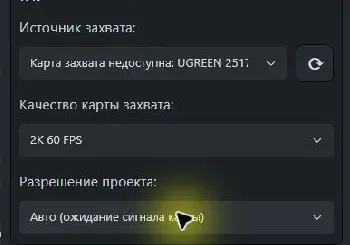
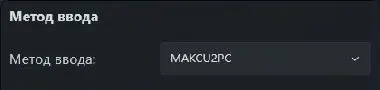
The status line must show an active signal: If it says No signal, verify HDMI is connected to HDMI IN, use a USB 3.x port on the second PC, close OBS/Camera/Discord if they own the device, and refresh the source list.
Method 2. Parsec — no capture card
Parsec runs as the host on the main PC and captures the selected display. The laptop connects as the client and shows that display full screen. For MAKCU 2 PC, a view-only guest connection is preferable so the laptop cannot send mouse, keyboard, or gamepad input to the game.
Parsec: Install the Parsec desktop app on both computers. Do not use the browser client for this setup: download Parsec.
First choose how to connect
Using one account is easiest for the first test. For regular MAKCU use, a separate guest account with no control permissions is safer.
One account — easiest
Sign in to the same Parsec account on both PCs. On the laptop, open Computers and click Connect on the main PC. This is an owner connection: the laptop receives full input permissions, and Use Client Resolution can change the gaming display resolution.
Two accounts — recommended
Click Share on the main PC. Sign in with a second account on the laptop and paste the link into the field at the bottom right. Accept the request on the main PC, then disable Gamepad, Keyboard, and Mouse for the guest to create a true view-only connection.
On the main PC — Host
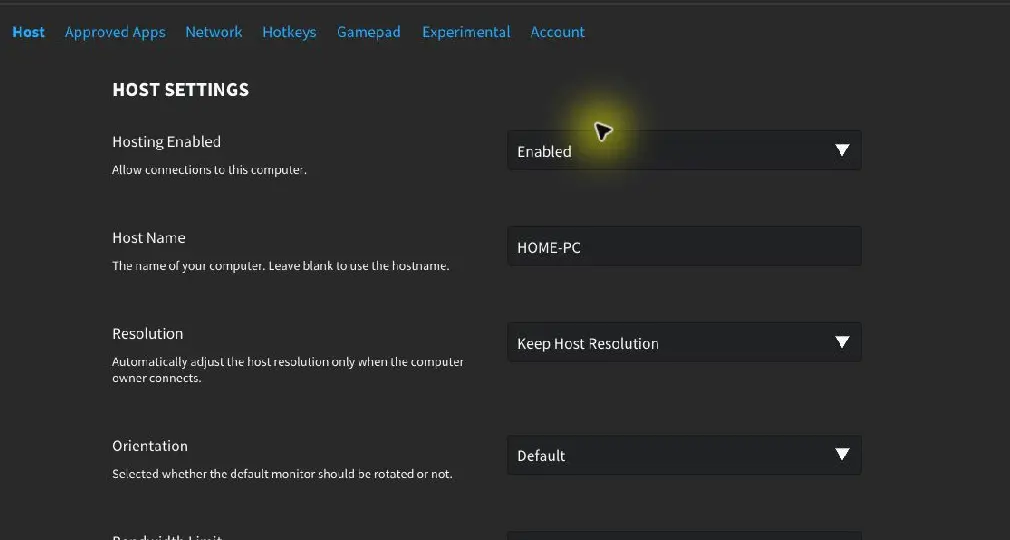
- Allow connections Click the Settings cog, open Host, and verify Hosting Enabled = Enabled. Hosting is normally enabled by default on Windows, but it still needs to be checked.
- Check the gaming display in Windows Open Windows Settings → System → Display, select the gaming monitor, and keep its actual resolution and normal refresh rate. Preferably make this display the main display.
- Select the display in Parsec In Settings → Host, find Display and select the same gaming monitor regardless of its resolution. If Parsec still shows another screen, make the gaming monitor primary in Windows and reconnect.
- Preserve the gaming display resolution For a single-account owner connection, set Resolution = Keep Host Resolution. Do not select Use Client Resolution because it can replace the gaming display resolution with the second PC display resolution. The setting does not apply to a guest, but keep it enabled for future owner connections.
- Set stream quality Start with Bandwidth Limit = 30 Mbps and FPS = 60. On a fast wired network, increase the limit gradually if fine details look blurred, but do not exceed 50 Mbps without a reason. For a weak laptop, try 30 FPS and immediately confirm that the gaming monitor refresh rate did not change.
On the laptop — Client
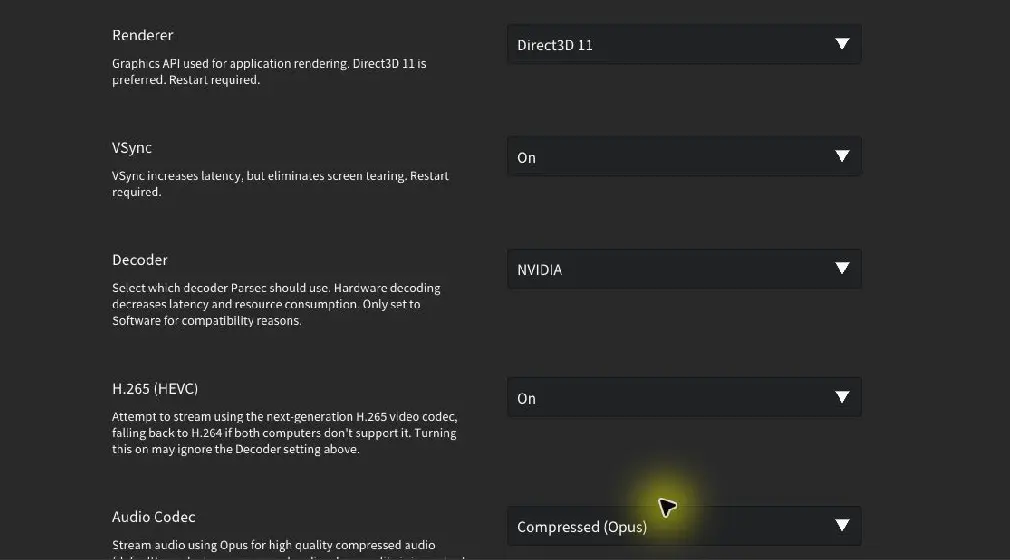
- Open client settings Before connecting, open Settings → Client. Keep Overlay enabled for the first test so you can see stream resolution, codec, and latency information.
- Use full-screen mode Set Window Mode = Fullscreen and Renderer = Direct3D 11. Parsec will fill the laptop display without a window border.
- Select a real hardware decoder Under Decoder, select Intel, NVIDIA, or AMD according to the second PC GPU. Do not use Software for regular operation because it heavily loads the CPU. If no hardware option is available, the device may be too weak to decode the gaming display stream at its original resolution.
- Test H.265 Enable H.265 (HEVC) when both PCs support it. After connecting, use Overlay to confirm H.265 and hardware decoding. If you see stutter, a black screen, or Software decoding, disable H.265 and use H.264.
- Connect to the host With one account, open Computers and click Connect. For a guest connection, paste the Share link into the field at the bottom right, then click Accept on the main PC or press Ctrl+F1.
After connecting
- Check the picture The second PC must show the gaming monitor, and the image must fill its display at the display’s actual resolution without borders or black bars. If the wrong display appears, correct Settings → Host → Display on the main PC.
- Disable remote control For a guest, click their avatar at the bottom of Parsec on the host and disable Gamepad, Keyboard, and Mouse; all three icons must be gray. With one account, press Ctrl+Alt+Z on the laptop to detach mouse and keyboard until the next click inside Parsec, and disconnect any laptop gamepad.
- Select the screen in TopMacro Run TopMacro on the second PC, choose MAKCU 2 PC input mode, the display containing full-screen Parsec, and that display’s actual resolution. Do not enter the gaming PC resolution when it differs: TopMacro analyzes the image shown on the second display.
- Run a control test Confirm the gaming monitor still runs at its actual resolution and usual refresh rate. Change weapons, open the inventory for attachments, and verify recognition for at least five minutes.
Which resolution to select in TopMacro: Parsec sends the selected gaming display at its original resolution, while the second PC scales the stream to its own display. In TopMacro, select the actual resolution of the second display running Parsec full screen. For example, a 2560×1440 stream may be shown on a 1920×1080 display, so TopMacro must use 1920×1080. Keep Host Resolution preserves the gaming display’s original resolution.
If the laptop is weak: First make sure Decoder is not set to Software. Then try a guest connection, 30 FPS, Ethernet, and test H.265 and H.264 separately. Close unnecessary apps and increase the TopMacro recognition interval. If CPU/GPU usage remains near 100% or the picture freezes, use OBS or a capture card at 1080p30.
Method 3. Discord — backup and testing option
Discord is useful for a quick MAKCU 2 PC test without a capture card or remote-desktop setup. The main PC shares the game window to a private voice channel and the laptop opens the stream full screen. Cloud compression preserves small sight and attachment icons less reliably, so direct capture-card input or Parsec is preferable for regular use.
When to use Discord: Use it for the first launch, a weapon-detection check, or a temporary setup. Treat Discord as a fallback when reliable recognition of small attachments matters.
Discord: Install the Discord desktop app on both computers. Stream quality cannot be changed in the browser: download Discord.
Prepare two accounts and a private channel
The clearest setup is a small private Discord server with one voice channel. Use two different Discord accounts.
- Prepare two accounts Sign in to the first account on the main PC and the second account on the laptop. Reusing one account can move the active voice session to the other device.
- Create a private server Create a private server and a voice channel named “MAKCU 2 PC”. Invite only the second account and do not publish the invite link.
- Check the Video permission Both accounts must see the channel, and the broadcaster needs the Video permission that enables Screen Share and Go Live.
- Use a stable network Prefer Ethernet on both computers. For Wi‑Fi, use 5 or 6 GHz near the router and pause downloads, cloud synchronization, and VPN traffic.
Start Go Live on the main gaming PC
Launch the game first, then configure the desktop Discord app. Share the game application rather than the whole screen so desktop windows and notifications are not transmitted.

- Launch the game before opening Screen Share Wait for the main menu. If exclusive fullscreen capture fails, switch the game to borderless windowed mode; it can still fill the gaming monitor regardless of its resolution.
- Join the voice channel Open the private server, join “MAKCU 2 PC”, and confirm that Voice Connected appears in the lower-left panel.
- Click Screen Click the monitor-with-arrow Screen icon in the voice connection panel to open the source picker.
- Select the game window Under Applications, select the specific running game. Avoid Screen 1 or the entire desktop unless you are troubleshooting.
- If Discord does not detect the game Open User Settings → Registered Games/Game Activity → Add it, add the running game, then reopen Screen Share.
- Verify the channel and source Confirm the private channel and game window once more. Disable Discord and Windows notifications that could cover weapons or inventory.
- Click Go Live Start the stream and return to the game. Discord may pause its small PiP preview while the game has focus; this is normal and does not mean the viewer stream stopped.
Choose resolution and frame rate
Available options depend on the subscription, server, and current Discord features. Do not copy the highlighted setting in the screenshot; use one of the profiles below.
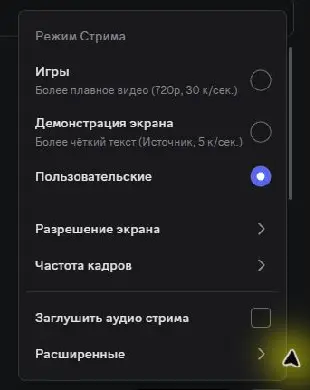
- Free test: 720p at 30 FPS Discord’s official guide states that all users can stream up to 720p/30 FPS. This often detects weapons, but small sights and attachments can blur.
- Working profile: 1080p at 60 FPS If Discord actually offers 1080p/60, select it. On a weaker laptop, 1080p/30 is preferable when available because detail matters more than extra frames.
- Avoid quality above what the second display needs Use the second PC display’s actual resolution and available bandwidth as the guide. A stream far above that display resolution adds network and decoding load without helping TopMacro.
- Change quality while live Hover over the PiP, click the gear → Stream Quality, and change Resolution or Frame Rate. Repeat the recognition test after each change.
Watch the stream on the laptop
Use the second account and the desktop Discord app. The selected monitor must show only the game frame, without the member list, chat, or call panels.
- Sign in to the second account Open the same private server and join “MAKCU 2 PC”. Camera and microphone are not required.
- Find the LIVE badge Click the broadcaster with the red LIVE badge and choose Watch Stream. Double-clicking the user may also open the stream directly.
- Switch to Focus View Select Focus View so the game stream becomes the main tile and occupies most of Discord.
- Hide other members Click Hide Members and remove the lower camera/stream thumbnails that reduce the game frame.
- Open Full Screen Click Full Screen. If needed, use Pop Out, maximize the separate window, and make sure the taskbar is hidden.
- Remove audio and notifications Recognition does not need sound. Mute the stream, enable Do Not Disturb, close chat, and keep the cursor away from weapons and inventory.
- Check the full 16:9 frame The game must fill the second PC display at its actual resolution without side panels, cropping, or black bars. Reapply Focus View and Hide Members if necessary.
The gaming monitor keeps its resolution: Discord captures an application and does not change Windows resolution on the gaming PC. The game remains at the main monitor’s actual resolution while Discord makes a compressed copy. In TopMacro, select the second PC display’s actual resolution because that is the screen the app analyzes.
Why Discord remains a fallback: Discord applies adaptive compression during motion and network instability. A large weapon icon may remain readable while small sight, grip, and attachment icons lose clarity. If 1080p is unavailable or attachment detection is unstable, use Parsec or direct capture-card input.
Five-minute control check
Check the system in game training mode without changing several parameters at once.
- Check the full frame On the laptop, both edges of the interface are visible, with no black bars, borders, or stretching.
- Switch two weapons The active weapon in the program should update after switching slots.
- Open the inventory Check the sight or module detection if this feature is supported by the selected client.
- Close all panels Remove the chat, participant list, and notifications, then repeat the same test.
- Leave for five minutes There should be no image freezing, frame drops, overheating, or constant 100% loading of CPU/GPU.
OK: Setup is complete when the main monitor keeps its original resolution, TopMacro receives a stable card signal with the same aspect ratio, and the detected weapon and profile update consistently after several switches.